Select exactly which photos get edited without changing your cull.
See Framewise on a real shoot.
Open a folder of originals, review the shortlist, then send your picks to Edit or continue in Lightroom Classic.
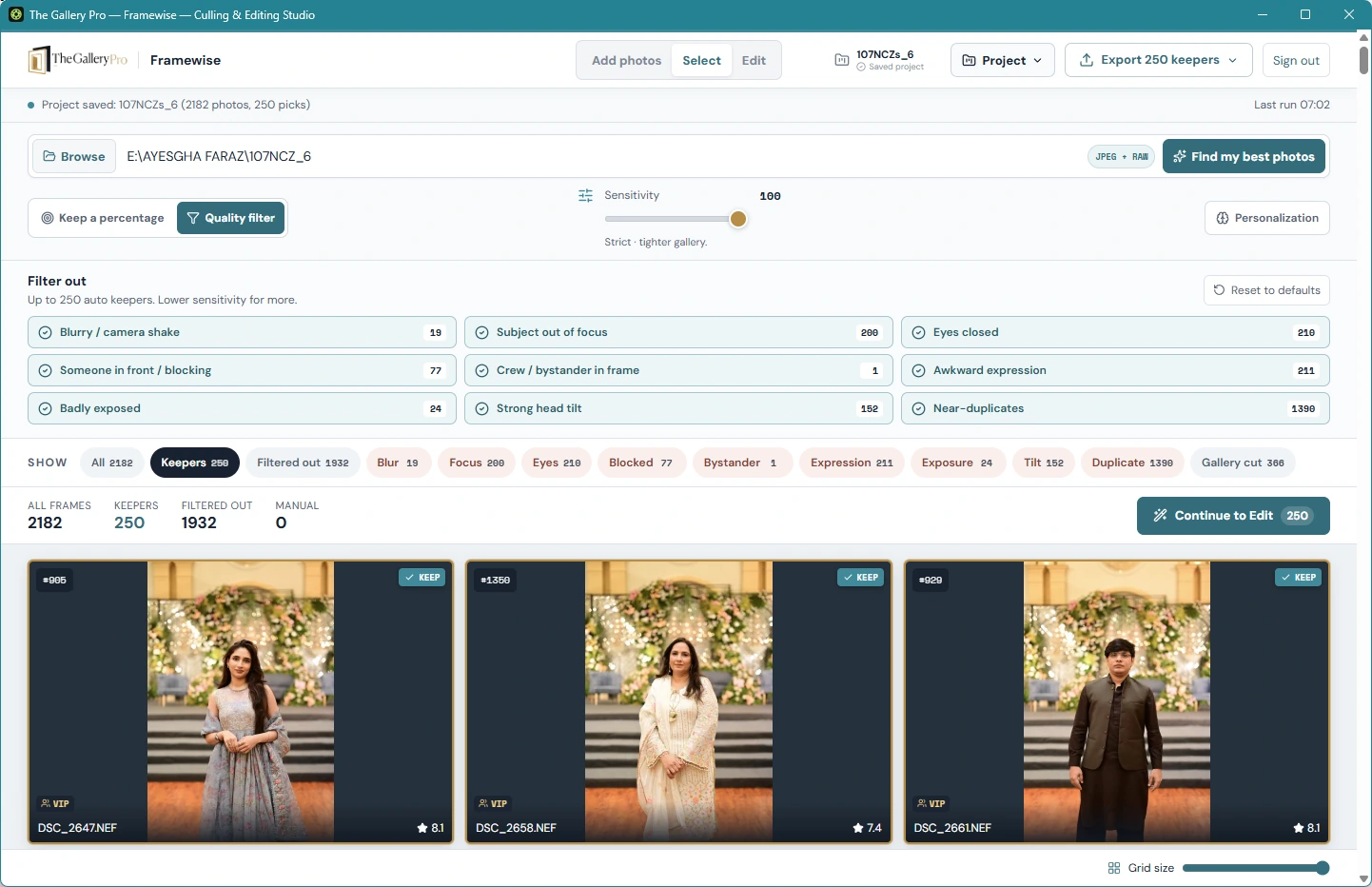
Filter by the issues you care about
Review missed focus, closed eyes, obstructions and near-duplicates. Adjust sensitivity and see why a photo was flagged.
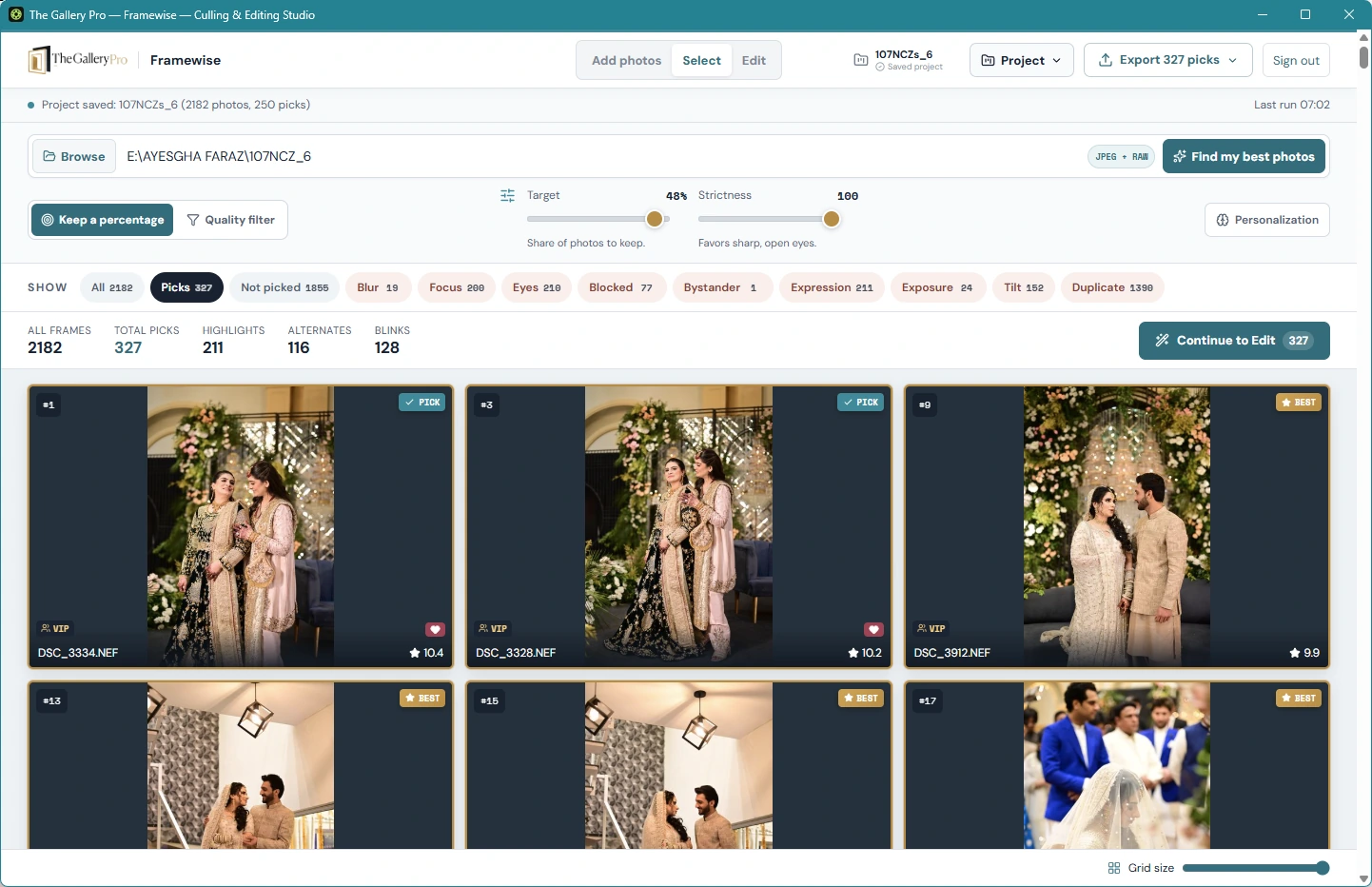
Build a cull to match the brief
Set a keeper percentage, review the shortlist and override individual picks. Matching RAW and JPEG files can appear as one photo.
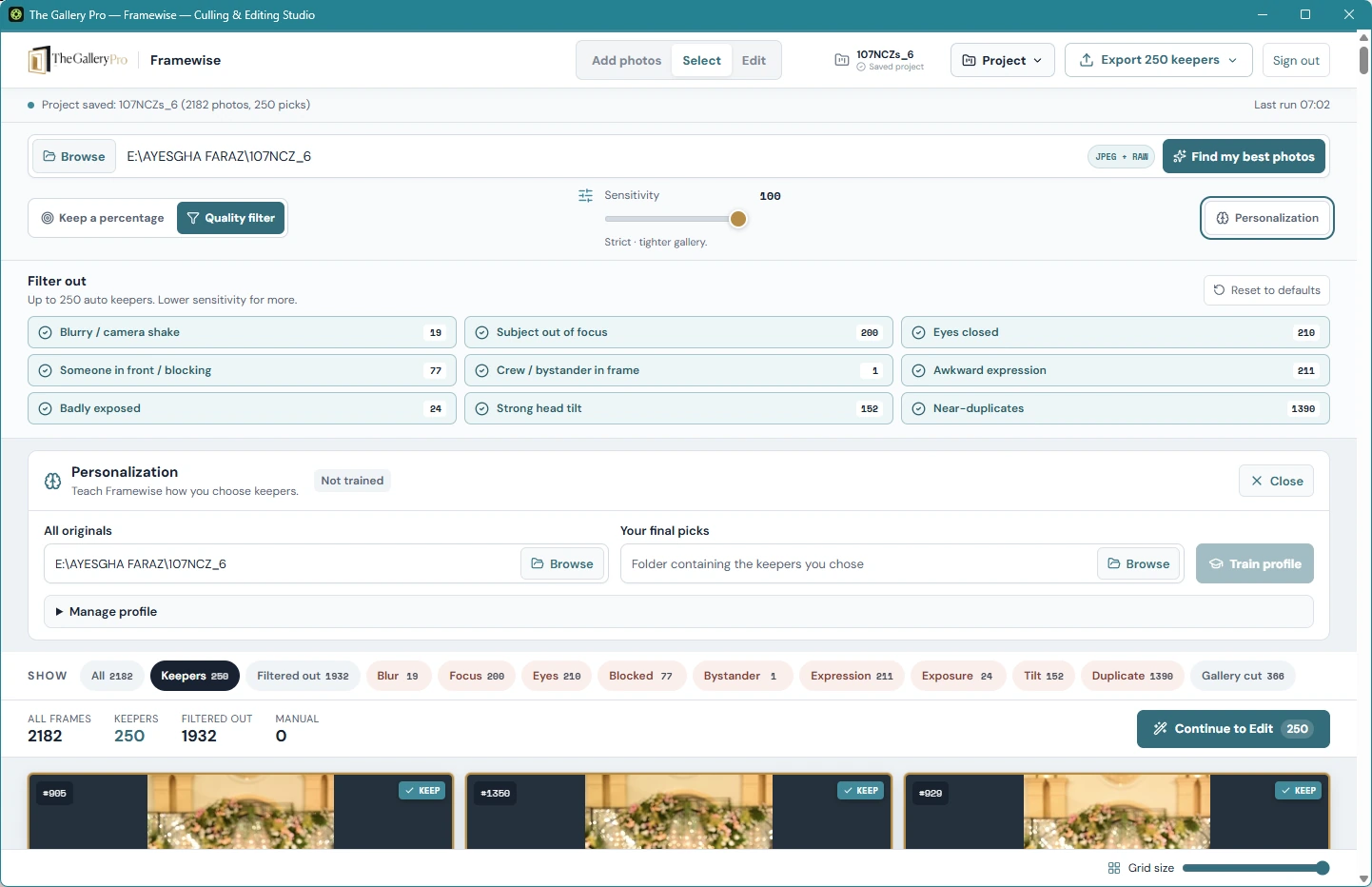
Teach Framewise how you choose
Train culling preferences on an original shoot and its final picks. Back up the profile and reuse it on future shoots.
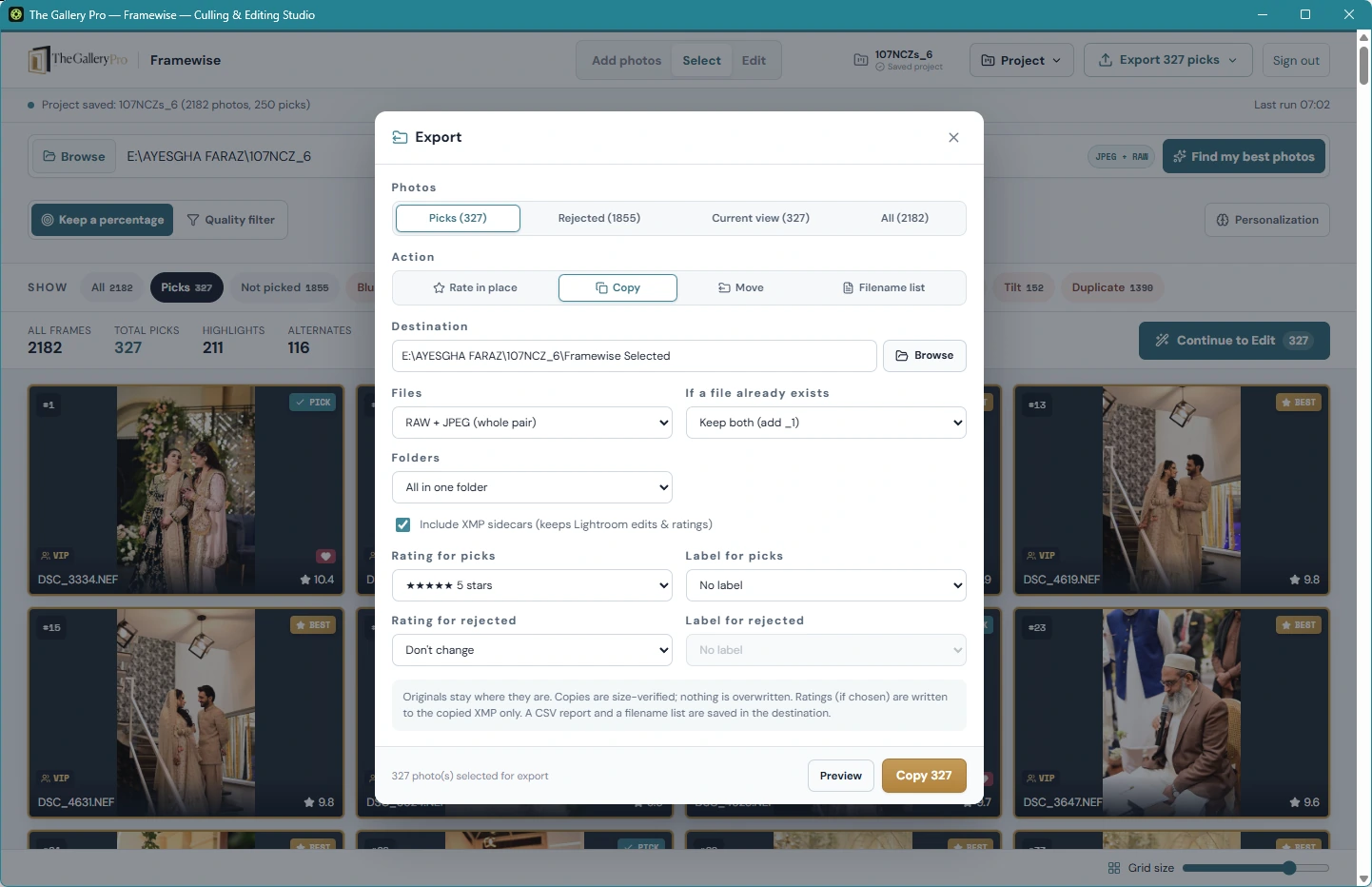
Export your picks
Copy your keepers or write ratings and color labels for the next step in your workflow.
Keep the originals where they are. Framewise processes photos on your computer. Preview edits before writing XMP sidecars, save a completed culling project, or export ratings, file lists and keepers.
How Framewise decides what to keep
Framewise checks sharpness, faces, exposure, composition and how similar nearby frames are. Those measurements inform the ranking and the nine filter categories you can control in Quality filter mode.
Keep a percentage
Set a target and adjust strictness. Framewise looks for strong photos within similar groups and tries to cover different parts of the shoot. The top-scoring frame is not always the next pick if another version of that moment is already in the gallery.
Quality filter
Choose which issues should remove a frame. Sensitivity changes how readily those issues count against it. Toggle filters and compare Keepers and Filtered out without running the analysis again.
What each quality filter checks
Blurry / camera shake
Looks for a lack of crisp detail across the frame, including directional smearing from movement. The analysis estimates noise so a grainy high-ISO photo isn’t judged just by how much texture it has.
Subject out of focus
A photo can have a sharp background and still miss the subject. Framewise checks face detail against the rest of the image and against clearer frames in the same burst.
Eyes closed
Checks blinks and partly closed eyes on the main subject and prominent people. It can treat laughing squints and likely embraces differently from an accidental blink.
Someone in front / blocking
Looks for foreground people or phones that cover a face or dominate the composition. Review flagged frames if you intentionally shot through a crowd.
Crew / bystander in frame
Flags some briefly appearing faces near an edge. This is a low-confidence clue: an important guest can also enter from the edge.
Awkward expression
Looks for transitional mouth shapes, such as being caught mid-word. Expressions are subjective, so compare nearby frames before rejecting a candid.
Badly exposed
Flags very dark frames or large clipped highlight areas. This is a culling flag, separate from the exposure adjustment in Edit.
Strong head tilt
Flags a pronounced tilt in the main face. Likely kisses or embraces are treated differently so the pose isn’t penalized automatically.
Near-duplicates
Groups visually similar frames and ranks the alternatives so you can keep the stronger version. Review intentional changes in expression, movement or framing before cutting the sequence.
What the badges and ratings mean
Best / Highlight
A lead frame chosen to represent a scene or sequence in the percentage-based cull.
Pick / Alternate
An additional frame retained alongside the highlights. Review these when you want more variety or a different expression.
Heart / Intimate moment
A clue based on face proximity and posture, useful for close moments such as kisses or embraces. It can reduce blink and expression penalties. It does not identify emotions or guarantee a keeper.
VIP
A hint that a likely key subject is present, based on patterns such as how often a face appears and how prominently it is framed. It does not assign names.
Score and rank
The decimal number is Framewise’s internal ranking score. It combines technical quality and other signals, and is not the Lightroom star rating. The rank shows where the photo sits in the scoring order.
Exported stars and labels
The standard percentage-cull export writes Highlights as 5 stars with a red label and Alternates as 4 stars with a blue label. Quality filter mode lets you choose what ratings and labels to write for keepers and rejects.
From the first pass to Lightroom
Add originals. Open a RAW or JPEG folder, or both together. Framewise uses previews to review and score the photographs.
Make and review the cull. Choose a percentage or quality filters, inspect borderline shots and compare similar frames. Override any pick. Save the culling project if you want to resume it later.
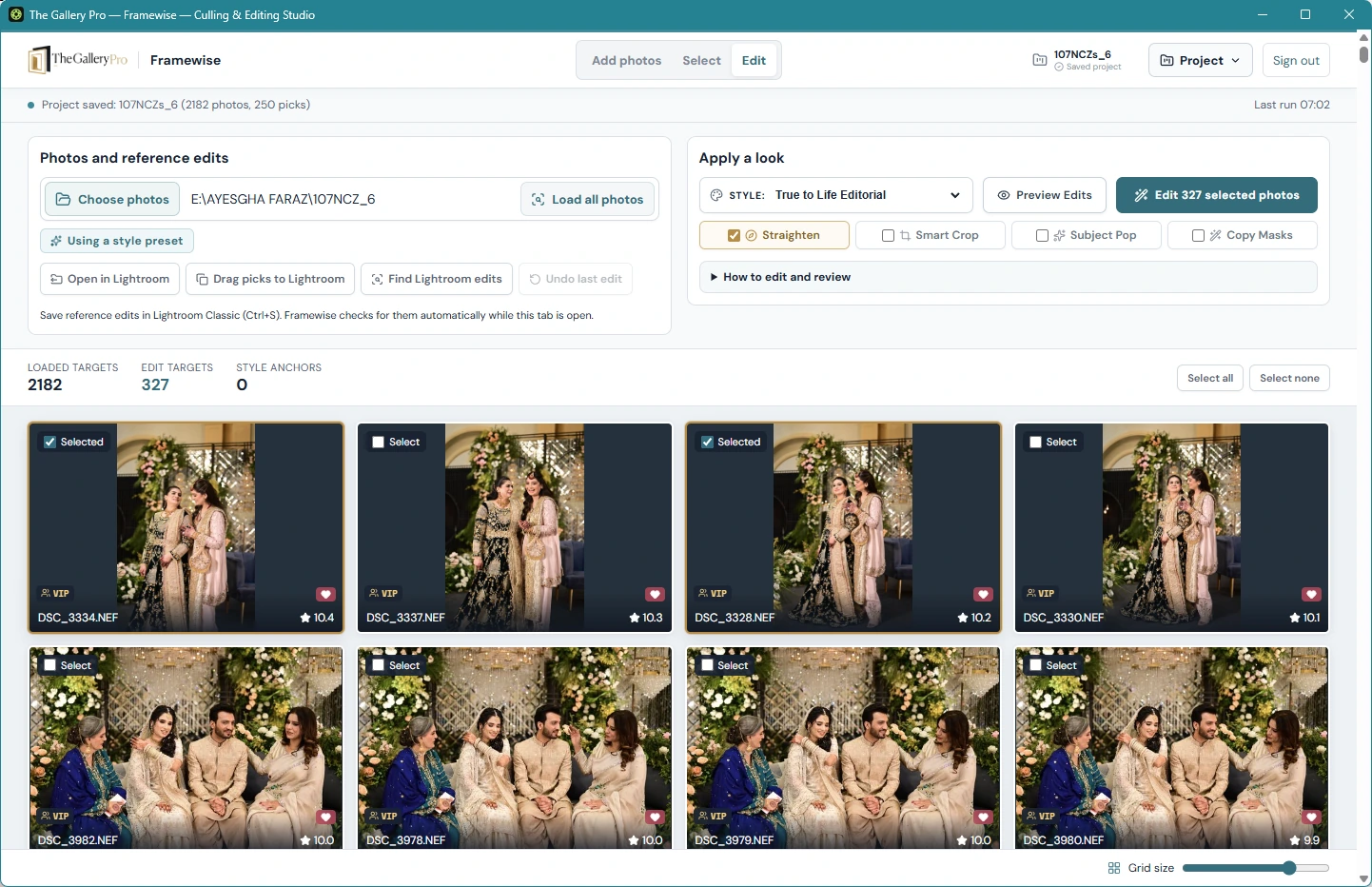
Choose the edit targets. Continue to Edit with your keepers or open Edit directly. Select or deselect photos without changing the saved cull. Preview the proposed edits before applying them.
Choose the look. Start with a preset or save a few reference edits in Lightroom Classic, ideally from different lighting setups. When references are detected, they take priority over presets.
Review the finished edits. Framewise writes sidecar metadata. For compatible RAWs already in Lightroom Classic, select the edited photos and use Metadata → Read Metadata From File. No reimport is needed.
Framewise vs. Aftershoot
Framewise is an Aftershoot alternative for photographers who want to see why photos were flagged and use a few Lightroom edits from the current shoot as references. Both apps offer AI culling and editing. Here’s how you guide each workflow.
A wedding gallery that tells more of the day
In our side-by-side review of the same wedding, Framewise picked fewer near-identical photos in a row and left shorter gaps between moments than Aftershoot.
Less time comparing similar shots
See why a photo was flagged, review the suggested picks, and keep a different frame when you prefer it.
More variety across the day
Framewise kept a mix of wide ceremony views, signing details, candid embraces, and later portraits of the couple.
Workflow
Framewise
Aftershoot
Culling
Set a keeper percentage or choose quality issues to filter. Review flags and override picks.
Offers assisted and automated culling with tools to review and override picks.
Editing look
Use reference edits saved from the current Lightroom shoot, a built-in preset, or a saved personal editing recipe.
Use a prebuilt editing profile, create an Instant AI Profile from a Lightroom preset, or train a Personal AI Profile.
Handoff
Change the edit selection without changing the cull. Load finished RAW sidecars in Lightroom Classic.
Offers one-click Cull & Edit and documents workflows for Lightroom Classic and Capture One.
Yes. Framewise accepts Sony ARW, Nikon NEF, Canon CR3 and JPEG. A Sony ARW was tested on Windows through preview generation, RAW analysis and XMP writing. Support can vary by camera model.
Do I need to convert RAW files to DNG on a Mac?
No. Framewise reads supported originals directly. The DMG is the Mac installer. It is not a DNG photo file.
How do I see Framewise edits in Lightroom Classic?
For supported RAW sidecars, select the edited photos in Lightroom Classic’s Library grid and choose Metadata → Read Metadata From File. Reading from disk can replace changes saved only in Lightroom. The same refresh does not apply to separate JPEG sidecars.
Can I edit without culling first?
Yes. Open Edit directly, load a photo folder and select the photos you want to edit. Choose a style or use Lightroom reference edits.
Do I need a separate Framewise account?
No. Use your existing TheGalleryPro account. The app processes photos locally, but account verification requires an internet connection.